
Print queue not clearing? Even after canceling items in your print queue?
Well fear not, today I have the solution to help you resolve this little issue without needing to re-install your printer drivers, throw your printer out the window or simply smash the thing into pieces.
Lets get right to it.
Step 1: Check Your Printer Queue
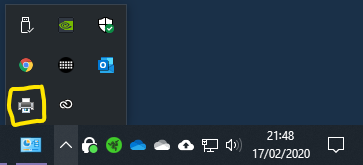
Start by checking your printer queue, you can do this by clicking on the little up (^) arrow in the bottom right corner by your clock and date. If your printer has items in the queue a little printer icon will show, like in the image below. Double click the printer icon to open the printer queue.
Alterntivly you can press the Windows key on your keyboard, type “printers & scanners” and select the “Printers & Scanners” system setting shown below.

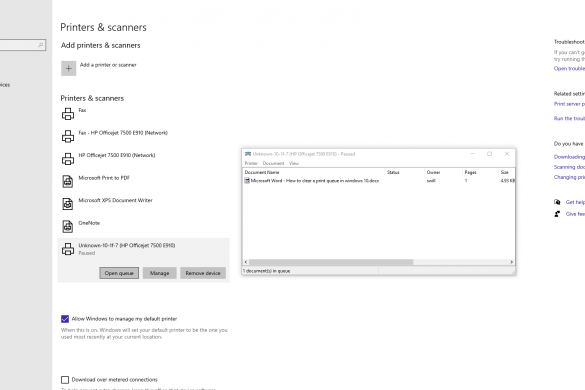
Click this panel / button once to open the “Printers & Scanners” system settings window whihc should look like this:

From this window you can now select your printer, in my case, this would be the “Unknown-10-1f-7 (HP Officejet 7500 E910)” printer, once selected, you will see three buttons. Select the “Open Queue” button to show the printer queue, just like below.
Step 2: Try clearing the current queue
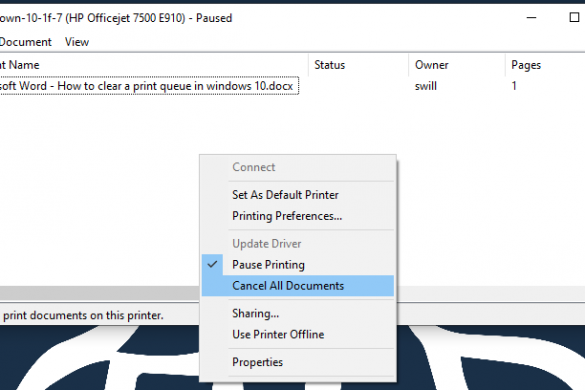
Next step is to try and clear the file causing your print queue to be blocked and stopping further documents from printing. Right-click on any row in the print queue and select “cancel” to try stopping the item from printing in the current queue just like the below image shows.

Another method to clear a queue with multiple documents and start a fresh is to right click anywhere in the white area of the print queue window and select “Cancel All Documents” as shown in the next image.
In most cases either of the above steps will typically clear all or most print queue issues with a little patience.
You must allow enough time for a file to clear the print queue and if this is a large graphics file this could be a couple of minutes or so, however if after 5 minutes this has still not cleared, move on to the next steps.
Step 3: Pause the print spool
The next steps outline how to find the printer spool service, stop the printer spool service and then proceeed to clear the print spool directory of any “hung” print queue items, so without anymore delay, lets move on.
To pause the printer spool, press your Windows key + R to open the run command window, alternativly press your windows key and type run in the search field and open the “Run” app.
You should now have a window as shown below open.
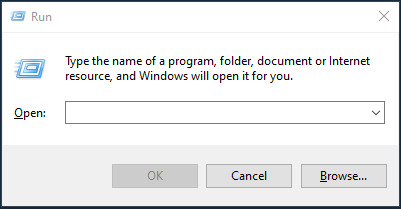
Now click inside the field and type “services.msc”, make sure to type the plural Services and tehn press enter or return key. Just like below.

Once you have pressed enter or return you will see the services window appear.
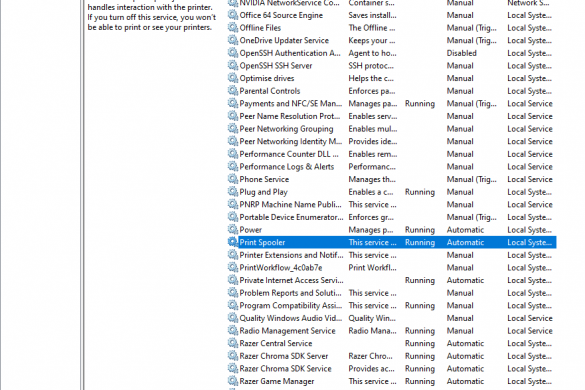
You now need to scroll down and find “Print Spooler”, then highlight this as shown below.
Once highlighted, just right click to open the context menu and select “Stop”, as you can see below in the image.
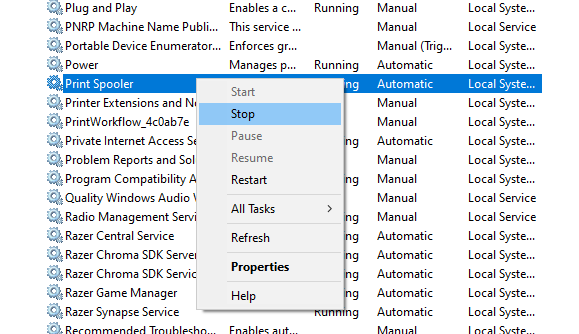
Another small progress window will appear for a short moment, just let this finish and then you are ready to move onto the next step.
Step 4: Clear the Print Spooler Directory
For this next step you will need to open file explorer, to do this just press Windows key + E or press the windows key once, and search for “File Explorer” app and open it this way.
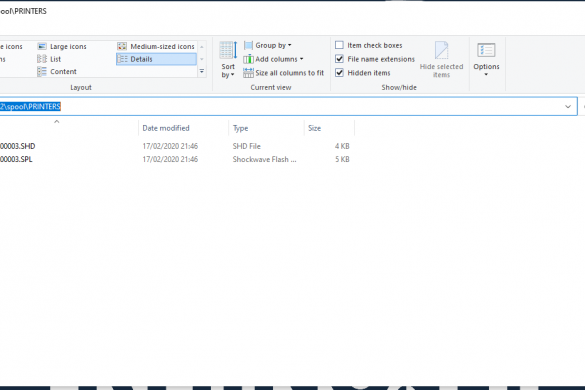
Once you have File explorer open you should see a window similar to that shown below and you need to navigate to the following directory path: C:\Windows\System32\spool\PRINTERS
Now you are in the print spooler directory defined above (double check to be certain) you should now highlight ALL files in this directory and delete, by selecting all and right click to show the context menu and select delete as shown here.
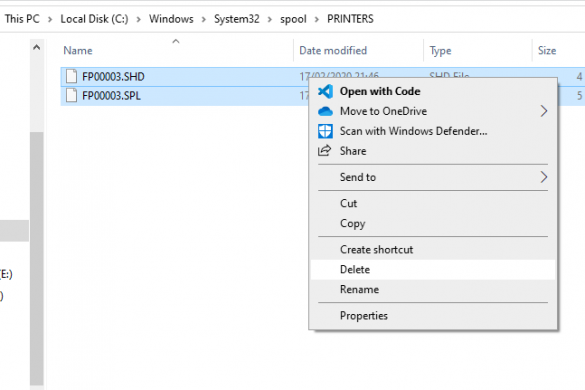
The print spooler directory located at C:\Windows\System32\spool\PRINTERS should now be empty. You can now close this window and move on to the next step.
Step 5: Restart the print spooler service
Now we have cleared the print spooler service directory, we can proceed to re-start the print spooler service as follows.
Press Windows key + R to open the “Run” command window again, tehn type in “services.msc” and press enter.
You should now see the services window once again just like the below image shows.
Navigate down until you find “Print Spooler”, again highlight the print spooler service row and right click to open the context menu and click “Start” to restart the print spooler service outlined in teh following image.
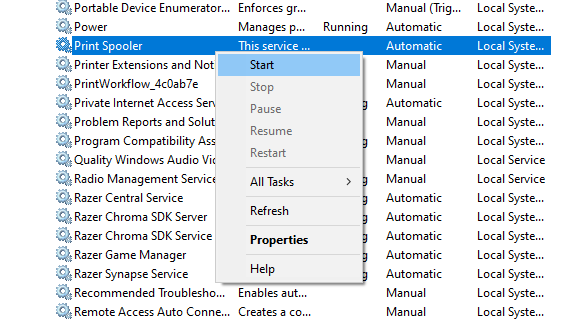
Once again a small progress window will appear for a short period of time, wait for this process to complete and tehn you are finished.
You can proceeed to close all open windows related to the above steps.
Now try printing again and you should see your items go into your print queue as normal and pprocess without any error.
Please bear in mind that the larger the file you are trying to print the longer it will take for the data to transfer to your printer and then be processed byb your printer. This may be chunked if the file sisze is exceptinoally large.
Closing statement: Comment, Like, Share, Subscribe.
I hope the above has helped you today, if so please leave a comment and dont forget to like and share the post to help others learn as well, plus dont forget to folow me on twitter, facebook, LinkedIn and YouTube for more content as it becomes available and also dont forget to click notifications icon on platforms like Toutube to be updated when new content becomes available.